

Overview
The HTFlow Cursor extension provides a visual interface for all HTFlow CLI commands, making it easy to manage HTFlow projects without touching the terminal.Works with both Cursor and compatible forks
Prerequisites
Before installing the HTFlow extension:Cursor 1.99.0+
Download from cursor.sh
Node.js 16+
Required for HTFlow CLI Download from nodejs.org
Installation
Step 1: Open Cursor
Launch Cursor on your computerStep 2: Open Extensions Panel
PressCtrl+Shift+X (Windows/Linux) or Cmd+Shift+X (Mac)
Step 3: Search for HTFlow
In the search bar, type “Htflow Html to Webflow”Step 4: Install Extension
Click the Install button next to the HTFlow extensionStep 5: Reload Cursor
Reload Cursor to activate the extensionHTFlow icon should appear in the Activity Bar
How HTFlow Cursor Extension Works
After installing the extension, install the HTFlow CLI:- Via Extension (Recommended)
- Via Terminal
Step 1: Open HTFlow Panel
1. Open HTFlow Panel
Click the HTFlow icon in Activity Bar or press 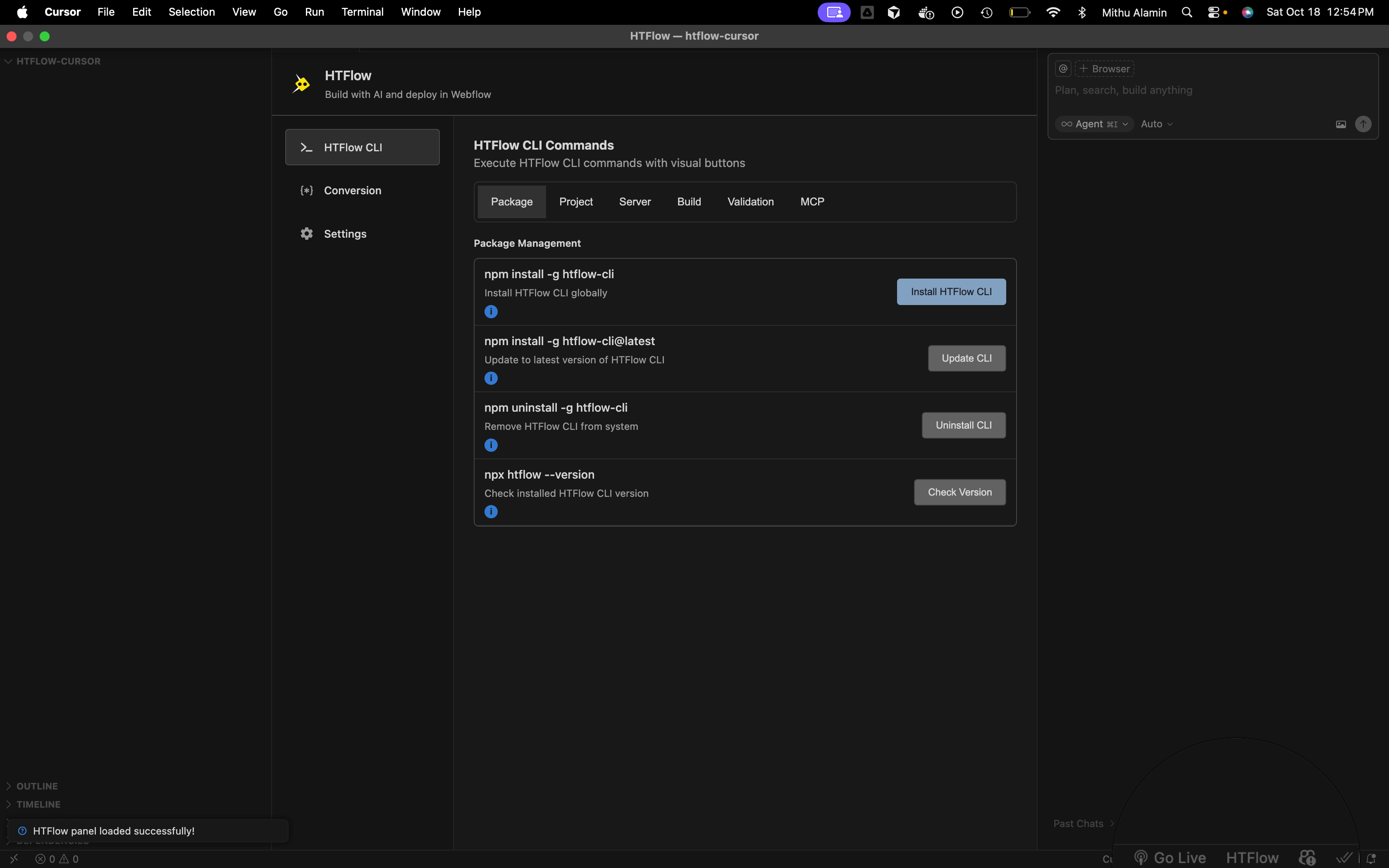
Ctrl+Shift+H / Cmd+Shift+HStep 2: Install HTFlow CLI globally
2. Install HTFlow CLI
In the HTFlow panel, click “Install HTFlow CLI” button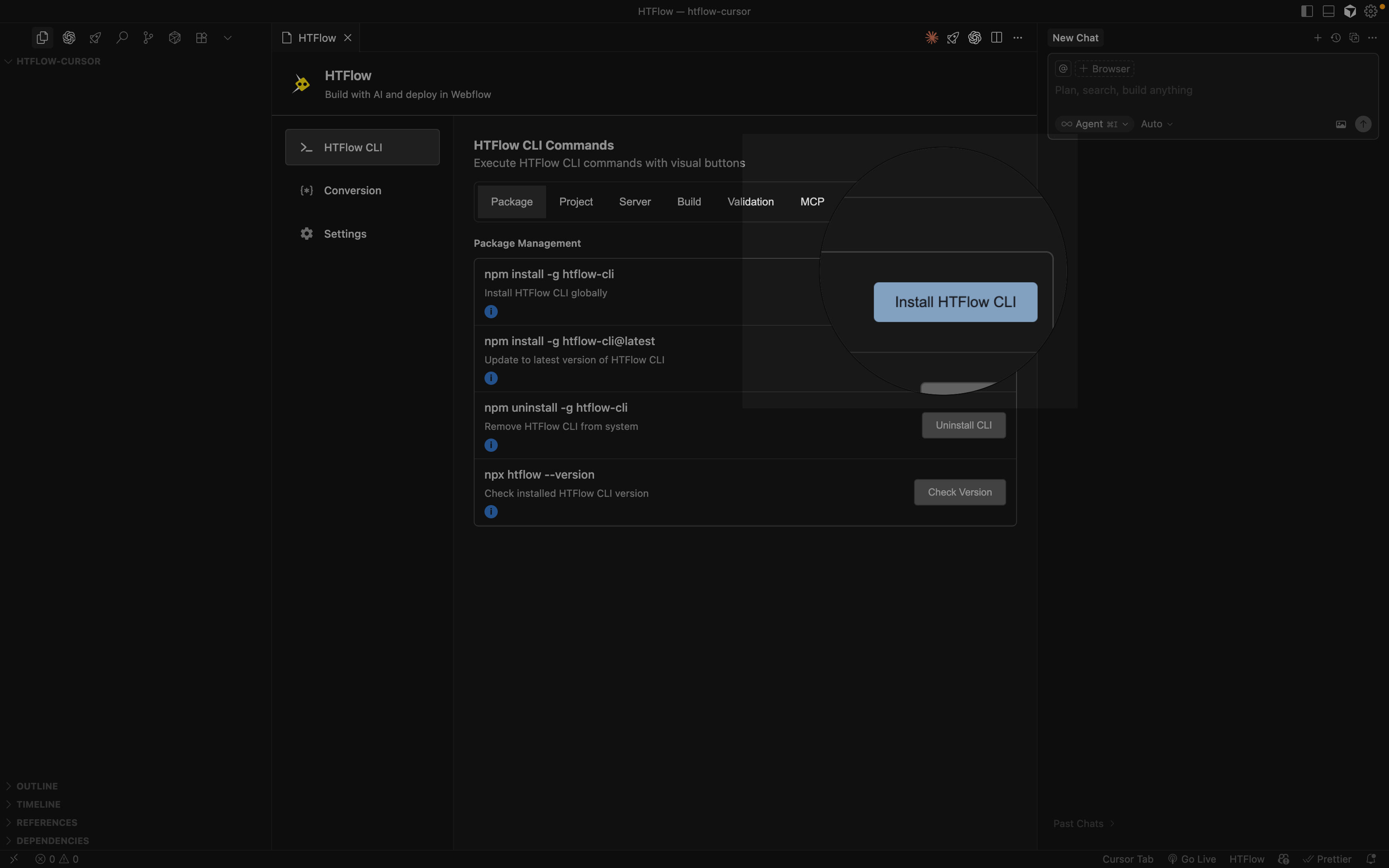
Step 3: Initialize Project
3. Initialize Project
In the HTFlow panel, click “Initialize Project” button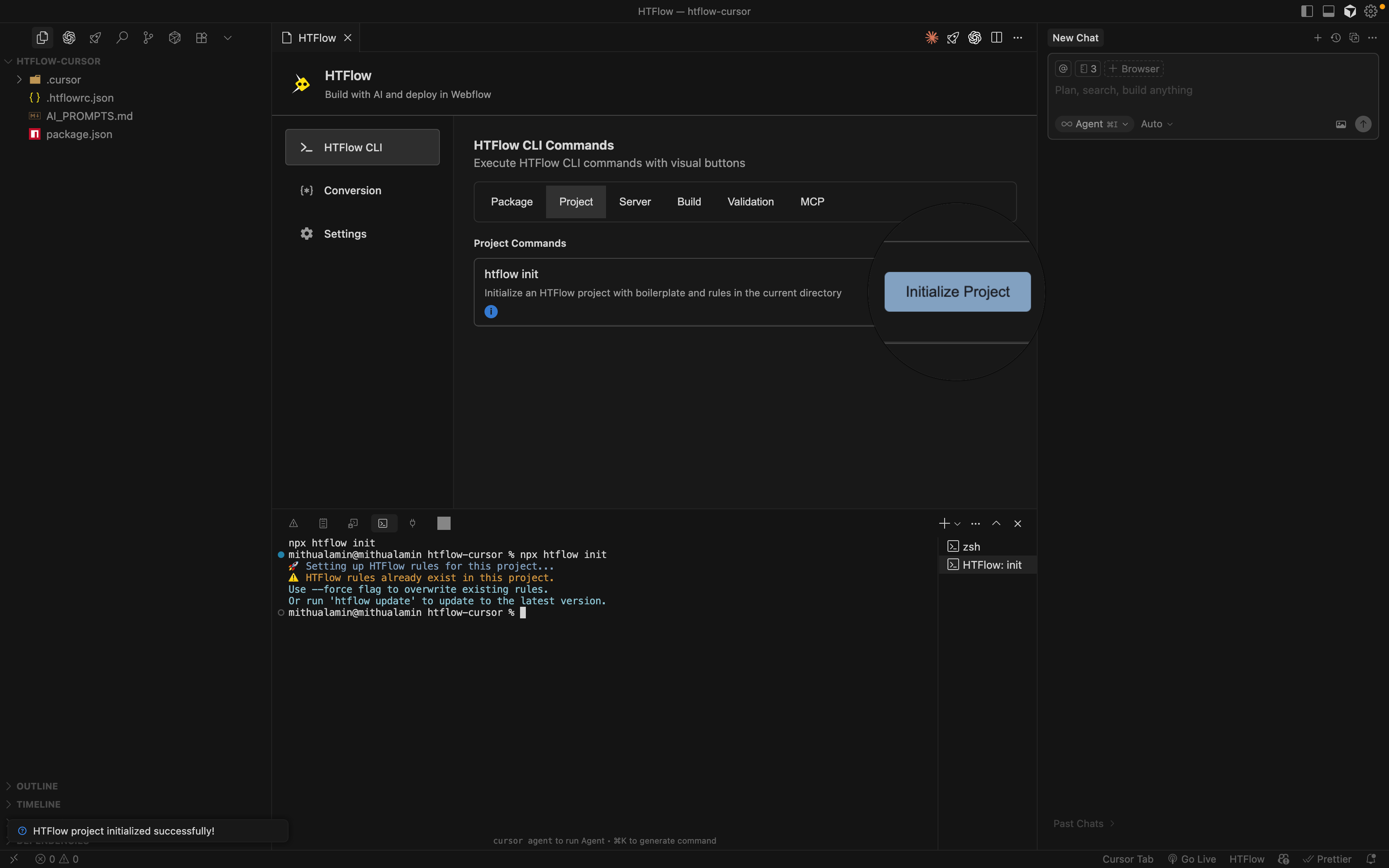
- htflow-html-essentials.mdc: Essential HTML rules and guidelines for HTFlow compatibility
- htflow-css-essentials.mdc: CSS best practices and HTFlow-specific styling rules
- htflow-js-essentials.mdc: JavaScript guidelines for HTFlow conversion
- htflow-html-examples.mdc: HTML code examples and templates
- htflow-css-examples.mdc: CSS examples and styling patterns
- htflow-js-examples.mdc: JavaScript code examples
- .htflowrc.json: HTFlow configuration file
- AI_PROMPTS.md: Pre-configured prompts for AI agents to generate HTFlow-compatible code
Step 4: AI Build
4. AI Build
Create your HTML webpage using an AI agent. We’ve shown the default Cursor AI in this example,
but you can use any AI agent you prefer, such as Claude Code, GPT Code, Gemini CLI, or any other AI coding assistant.Key Requirements:
- Instruct your AI agent to follow the HTFlow rules that were established during the project initialization step
- Provide the
.cursorfolder,htflowrc.json, andAI_prompt.mdfiles as context to your AI agent (Cursor AI or others) - This ensures the AI agent will generate HTML, CSS, and JavaScript code that is compatible with Webflow and Droip conversion requirements
- Start with a clear description of your website requirements
- Ask the AI to follow the HTFlow rules from the configuration files
- Iterate on the design until you’re satisfied with the result
- Save your files before proceeding to the audit step
Step 5: Audit and Validation
5. Audit and Validation
Once you’re satisfied with your AI-generated design, run the audit to validate your code against HTFlow rules.In the HTFlow panel, click on the “Validation” tab and then click the “Audit Project” button.
HTFlow will execute the 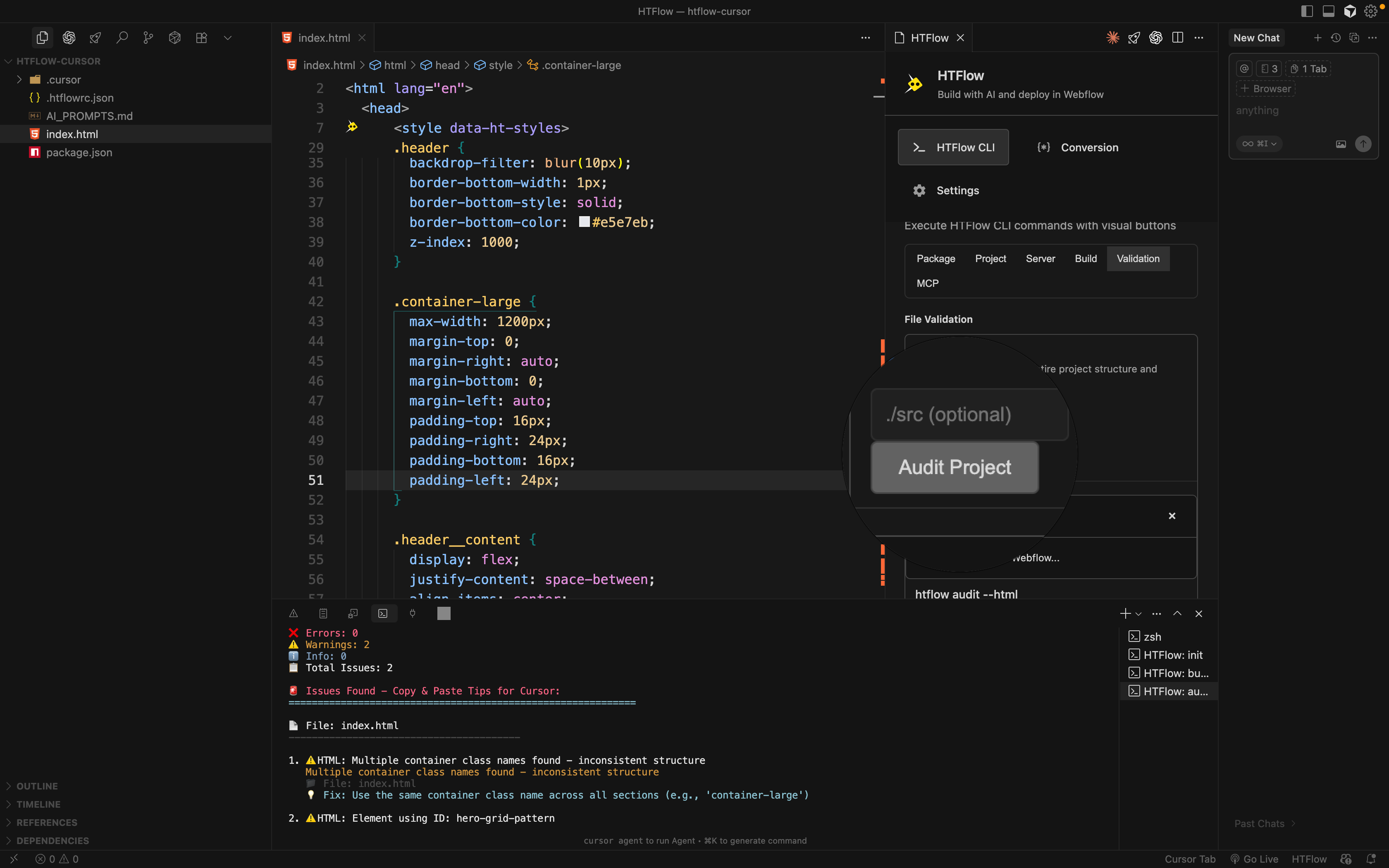
npx htflow audit command in the terminal.What the Audit Does:- Scans your HTML, CSS, and JavaScript files for rule violations
- Displays all compatibility issues that need to be fixed
- Provides detailed error messages and suggestions
See the complete tutorial to learn how to build a full website with HTFlow from start to finish.
Step 6: Development Server
6. Development Server
In the HTFlow panel, click the “Server” tab where you’ll see two server options:
- HTFlow Serve Dev (Development Server): For testing and development
- HTFlow Serve Start (Production Server): For final deployment and production use
- Live Preview: You can see your website changes in real-time as you develop
- Hot Reloading: Automatic browser refresh when you save files
- HTFlow Chrome Extension Integration: Enables website inspection capabilities
- Serves your website on a local port (typically http://localhost:3050)
- Enables real-time file watching and automatic reloading
- Provides development-specific features and debugging tools
- Integrates with the HTFlow Chrome extension for enhanced inspection
- Website Inspection: Analyze your HTML structure and styling
- AI-Prompt Generation: Generate prompts for AI agents to improve your design
- Design Analysis: Get suggestions for layout and styling improvements
- Code Optimization: Identify areas for better performance and compatibility
The HTFlow development server is strongly recommended for development mode, as the HTFlow Chrome extension only functions properly with this server type. This ensures full compatibility and access to all development features.
Step 7: Production Server
7. Production Server
In the HTFlow panel, click the “Server” tab where you’ll see two server options:
- HTFlow Serve Dev (Development Server): For testing and development
- HTFlow Serve Start (Production Server): For final deployment and production use
- Final Testing: Test your website in production-like conditions
- Performance Optimization: See how your site performs with optimized settings
- Deployment Preparation: Ensure your site is ready for live deployment
- Conversion Ready: Prepare for Webflow or Droip conversion processes
- Serves your website with production-optimized settings
- Enables minification and compression for better performance
- Provides production-specific configurations
- Prepares your site for deployment and conversion
- Optimized Performance: Faster loading times and better resource management
- Conversion Compatibility: Ensures compatibility with Webflow and Droip conversion tools
- Deployment Ready: Your site is prepared for live deployment
- Production Testing: Test your site as it will appear to end users
The production server intentionally disables JavaScript to preserve the original HTML structure.
This ensures compatibility with the HTFlow Chrome Extension
for Webflow and Droip conversion. Please note that in production mode, JavaScript functionality will not work - this is specifically designed for conversion purposes.
Step 8: Build for Conversion
8. Build for Conversion
In the HTFlow panel, click the “Build” tab and then click the “Build Project” button.This will create a folder in your project root called htflow-copyable and organize each HTML file
as a separate folder containing the copyable HTML, CSS, and JS codes. These files can be used to convert
into Webflow or Droip using the HTFlow Webflow app or HTFlow web app:Example folder structure after build: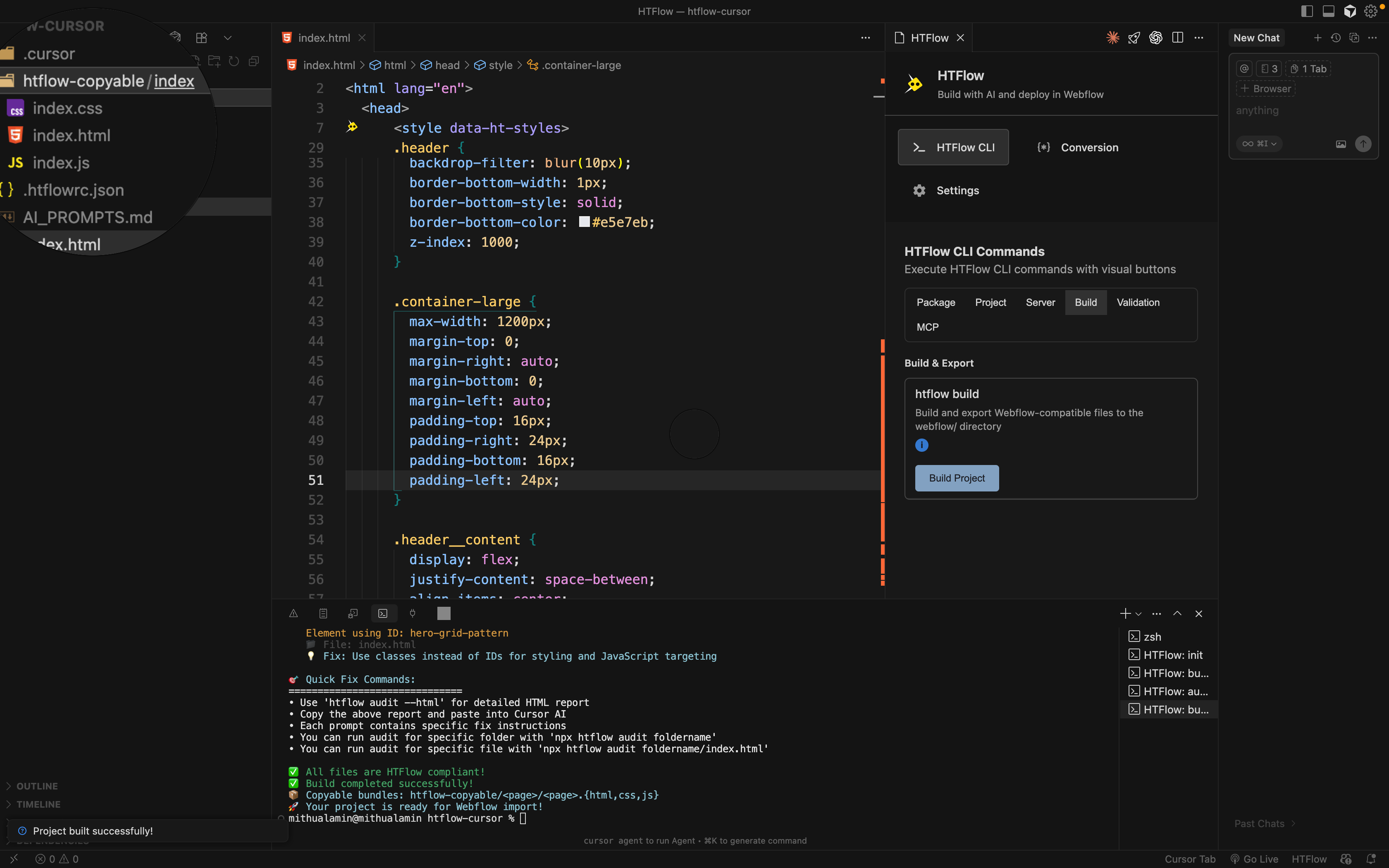
Step 9: Use Webflow App for Conversion
9. Use Webflow App for Conversion
Once you have your HTML and CSS code ready, you can convert them to Webflow using the HTFlow Webflow App.How to Use the HTFlow Webflow App: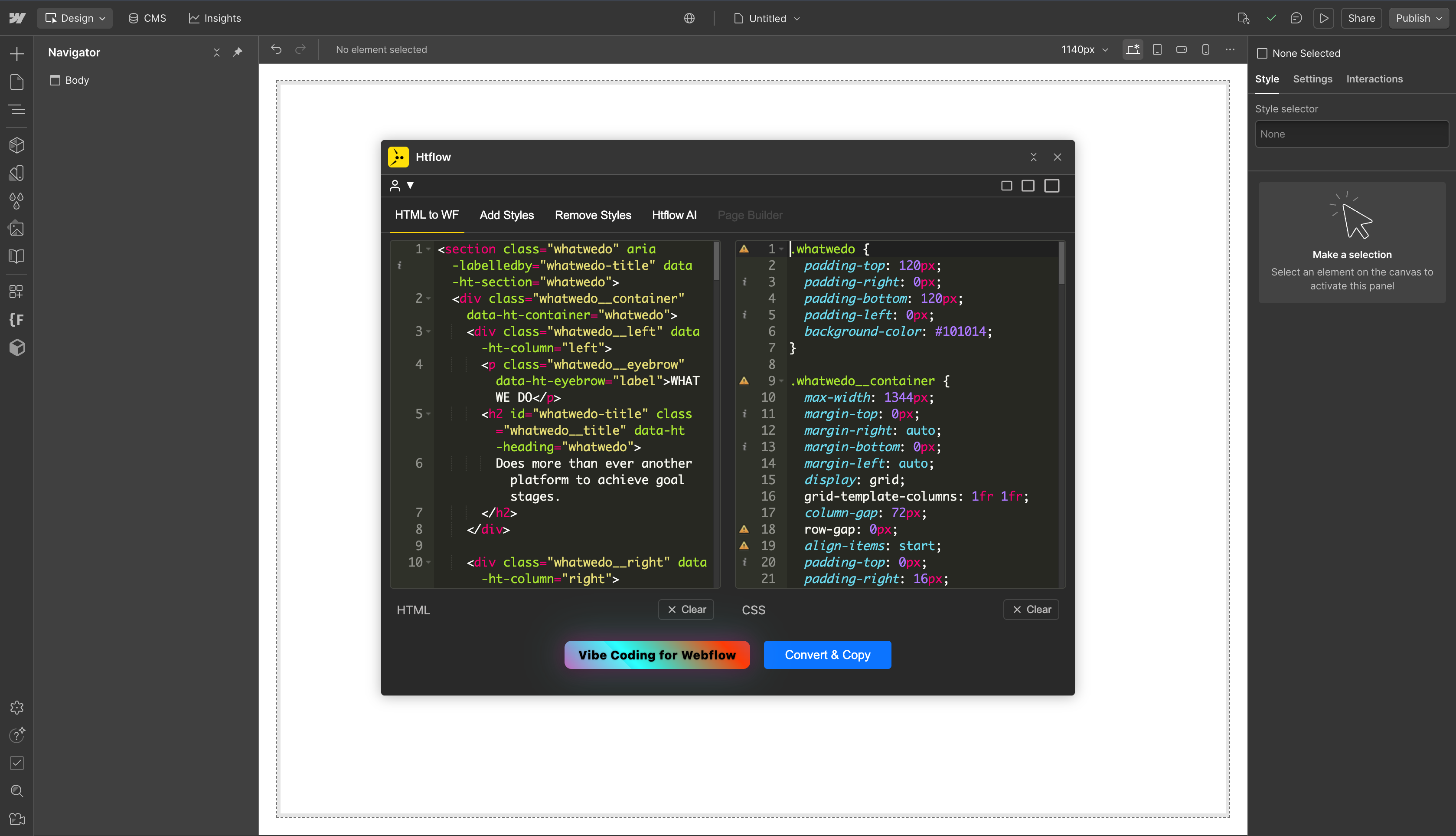
- Install the App: Go to your Webflow design canvas and install the HTFlow app
- Login: Once you log in to the app, you’ll see the “HTML to WF” tab
- Input Your Code: The tab contains HTML and CSS input areas:
- Paste your HTML code in the HTML area
- Paste your CSS code in the CSS area
- Convert: Click the “Convert & Copy” button
- Paste in Webflow: Once converted, simply paste into Webflow using:
- Mac:
Cmd + V - Windows:
Ctrl + V
- Mac:
- Seamless conversion from HTML/CSS to Webflow elements
- Preserves styling and layout structure
- Direct integration with Webflow’s design canvas
- Maintains responsive design properties
JavaScript Code Integration: You need to copy and paste the JavaScript code separately into your Webflow page.
You can do this by either:
- Page Settings: Go to your page settings and paste the code in the “Custom Code” area
- Embed Element: Add an Embed element to your page and paste the JavaScript code including the
<script>tags
Step 10: Use Chrome Extension for Conversion
10. Use Chrome Extension for Conversion
Convert your HTML website to Webflow using the HTFlow Chrome Extension for seamless integration.Prerequisites:
- Ensure you have the production server running (as described in Step 7)
- Have the HTFlow Chrome Extension installed
- Start Production Server: Run the production server as described in Step 7
- Open Website: Your local website will open in Chrome browser with the production server
- Activate Extension: Click on the HTFlow Chrome Extension icon in your browser toolbar
- Extract Code: Click the “Extract for Webflow” button in the extension side panel
- Convert: The extension will extract all HTML, CSS, and JavaScript code
- Final Conversion: Click the “Convert for Webflow” button
- Paste in Webflow: Go to your Webflow project’s design canvas and paste using:
- Mac:
Cmd + V - Windows:
Ctrl + V
- Mac:
- Direct browser integration for seamless conversion
- One-click conversion process
Step 11: Conversion for Droip (WordPress)
11. Conversion for Droip (WordPress)
Convert your HTML website to Droip (Wordpress) using the HTFlow Chrome Extension for seamless integration.Prerequisites:
- Ensure you have the production server running (as described in Step 7)
- Have the HTFlow Chrome Extension installed
- Start Production Server: Run the production server as described in Step 7
- Open Website: Your local website will open in Chrome browser with the production server
- Activate Extension: Click on the HTFlow Chrome Extension icon in your browser toolbar
- Extract Code: Click the “Extract for Droip” button in the extension side panel
- Convert: The extension will extract all HTML, CSS, and JavaScript code
- Final Conversion: Click the “Convert for Webflow” button
- Paste in Droip: Go to your Droip project’s design canvas and paste using:
- Mac:
Cmd + V - Windows:
Ctrl + V
- Mac:
- Direct browser integration for seamless conversion
- One-click conversion process
Next Steps
Cursor Extension
Learn about HTFlow with Cursor AI
Quick Start
Create your first HTFlow project